Document Settings
Note: To interact with these settings, you need to be in dual page mode.
There are three settings that can be saved per document:
- Reading Direction
- First Page as Cover
- Automatic Enablement
Where to Find the Settings
With a paged document (PDF, CBZ, etc.) open, these settings appear in the top menu, on the second icon:
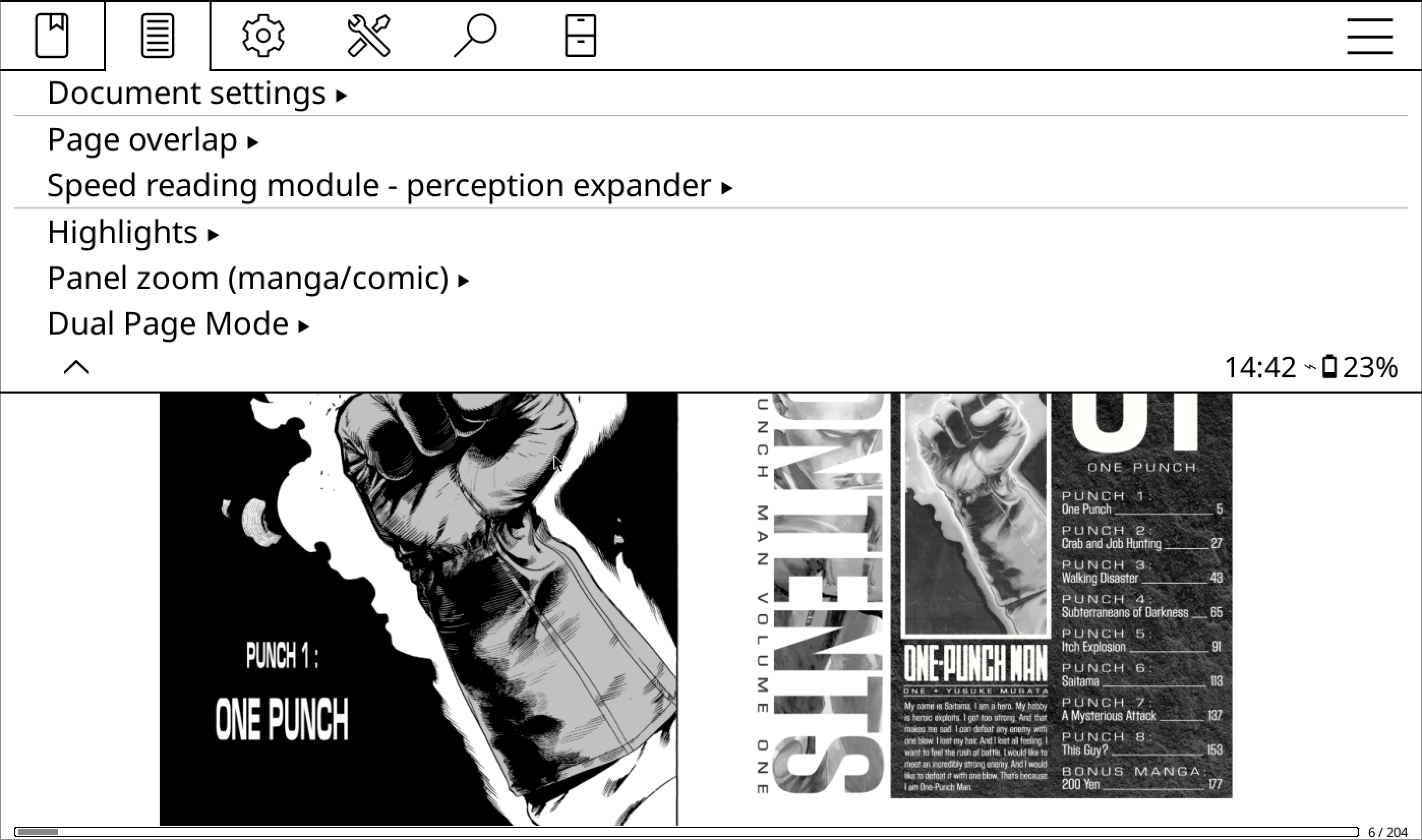
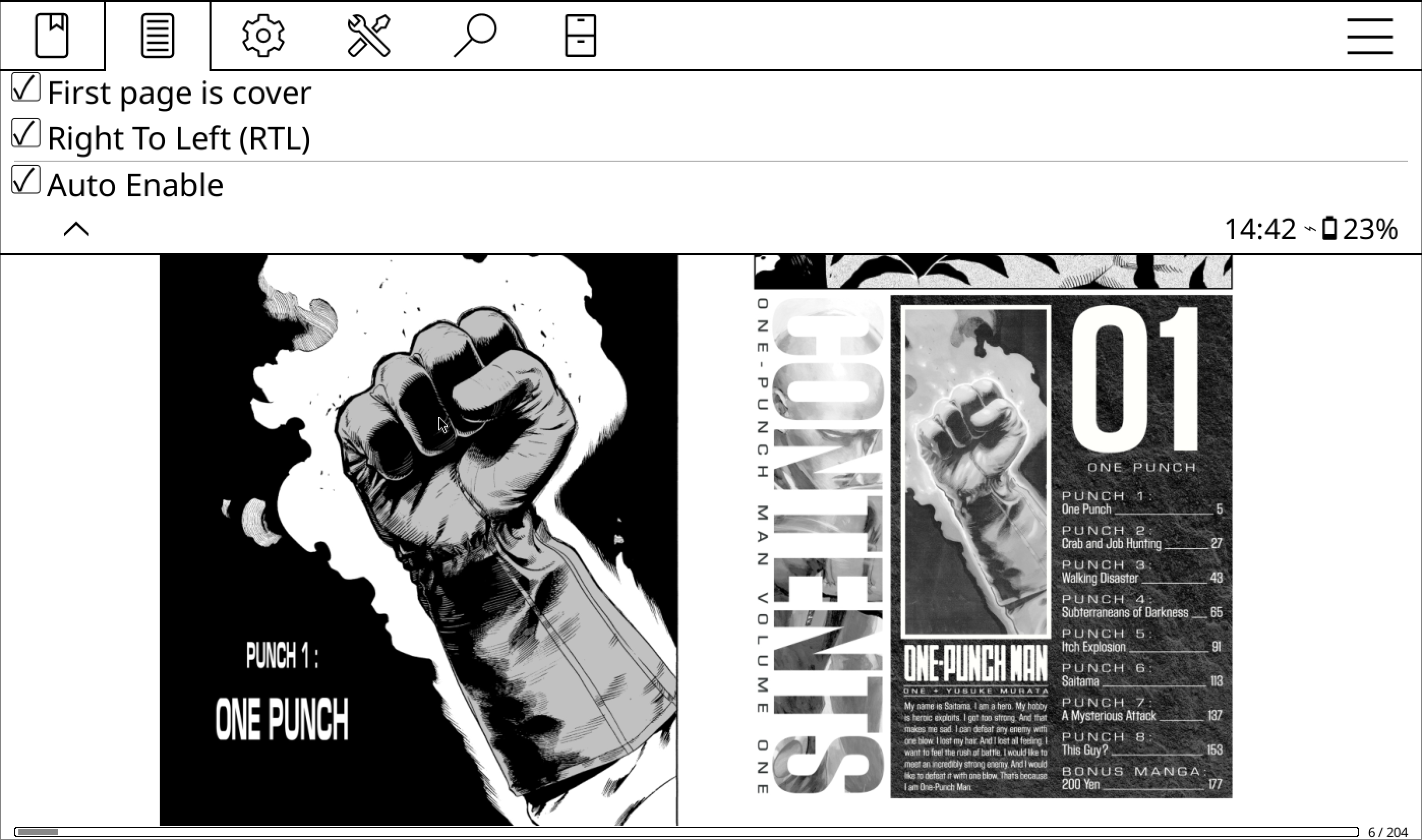
Reading Direction
Right-to-Left (RTL)
By default, pages are displayed in order: page1|page2. This works perfectly for left-to-right (LTR) documents.
For RTL documents, where the correct order is page2|page1, toggle the RTL setting. This ensures your pages display in the proper sequence.
First Page as Cover
Some documents start with a cover page that should be shown on its own.
- Enable First Page as Cover if this applies to your document.
- If not enabled, pages will shift by one, resulting in something like:
cover|page1page2|page3 - Enabling it will show the cover separately:
cover page1|page2
Use this setting to match the layout you prefer.
Automatic Enablement
Auto Enable
Turn this on to have dual page mode automatically activate when your device is in landscape orientation.
This makes reading wider documents effortless without manual toggling.